Posts

Get Rid of the PCL XL Error with 123.hp.com/setup

Image
The PCL XL Error can be frustrating to the core. It is one of those errors that pop ups suddenly in between a task. This error generally occurs when multiple documents are sent for printing, and an issue of driver corruption and printer settings glitch pops up. In this blog, 123.hp.com will provide you with  a list of things that you can do to sail through the PCL XL error and resume with your work in full force again.   Update your HP Printer Driver It is a possibility that your printer drivers have become a thing of the past, and the latest drivers are required for your printer to work perfectly. Updating printers is the first step that you should undertake. The latest drivers will be available on the official website, where you need to search the model of your printer, choose the version of the Operating System that your PC/laptop runs on and download the latest drivers. Once downloaded, click on the downloaded file, the stup will start. Read through the instructions and p...

How to Resolve HP Printer Printhead Issues with 123.hp.com/setup

Image
HP printers have made their mark in the market for printers. It is primarily because of the distinct features they offer that makes way for high-quality and effortless printing. But, like any technical equipment, HP printers are also vulnerable to various glitches. One of the problems that trouble users relate to the printhead. Remember that you can navigate to 123.hp.com/setup if you want to know more about HP printer setup and installation. In this article, you’ll find all the ways by which you can get rid of all printhead issues.   Different Ways to Troubleshoot Printhead Problem with 123.hp.com/Setup There are numerous methods to eliminate all printhead problems. Read about them below.   Clean and reinstall the printhead. You can solve this problem by cleaning, removing, and reinstalling the HP printhead. Follow the directions given below.   Turn on the HP printer. Open the access door of the cartridge.  Take out every cartridge and put them on paper. But don’t ...

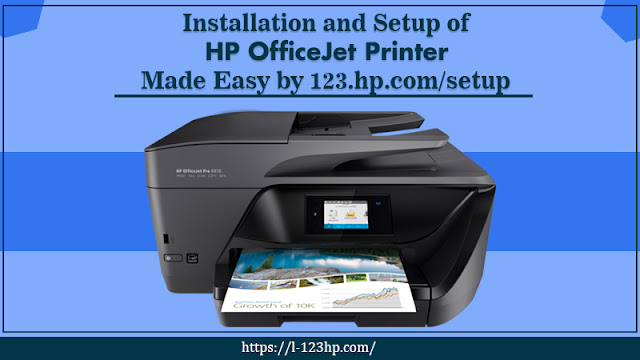
Installation and Setup of HP OfficeJet Printer Made Easy by 123.hp.com/setup

Image
  An OfficeJet Printer is capable of handling multiple tasks like printing, scanning, and faxing documents. These printers come equipped with larger cartridges that are capable of holding more ink and can print more pages with a single refill. These features make them the best option for official, commercial, and corporate use. OfficeJet printers use inkjet technology for printing images and text of the highest quality on almost any paper. Due to its features and smooth functioning, the super versatile HP OfficeJet printer is now no longer limited to the corporate shelves, but is finding its way into people’s homes as well. Setting up a printer can be a tedious task. The hardware might be easy to figure out but the software aspect does take a bit of time. With a lot of advancements in technology, there are a few steps that might feel a bit more alien than normal installations. So if you are facing any problem with setting up your HP OfficeJet printers, then you need to look no furt...

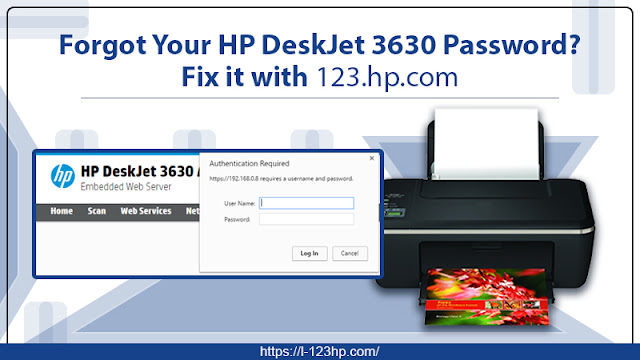
Forgot Your HP DeskJet 3630 Password? Fix it with 123.hp.com

Image
  HP DeskJet 3630 printer has a small footprint, sleek design, wireless connection, and reasonable price range. Although the printer isn’t ideal for bulk printing, it can be well-utilized in small offices and homes. But often, when users connect it to Wi-Fi, it can cause them an issue while you are trying to print after making modifications to your system. It can occur because of you forgetting the Wi-Fi direct password. But troubleshooting this problem is not very difficult. Remember that you can always go to 123.hp.com/setup if you need help with any HP printer related issue.   How to Find HP DeskJet 3630 Password for Windows Users You can easily find the Wi-Fi password if you are a Windows user. The steps for doing so are given below.   Right-click the icon of ‘Network tray’ in the Windows. Choose the option of ‘Open network.’ Tap the option of ‘Sharing center.’ Now select the option of ‘Change adapter settings.’ Right-click the network name option and tap ‘Status.’ S...